Managing Quarantine
This article explains how to review and remove programs that BestCrypt Data Shelter has placed in quarantine.
Quarantine is used when Data Shelter detects that an executable file has changed and the program then tries to access protected folders. In this case, Data Shelter temporarily blocks the program from accessing protected data and places it in quarantine.
The change may be legitimate, such as a software update, or suspicious, such as a modified, replaced, or infected executable.
For a conceptual explanation of quarantine behavior and policy-wide quarantine settings, see Protection Policies.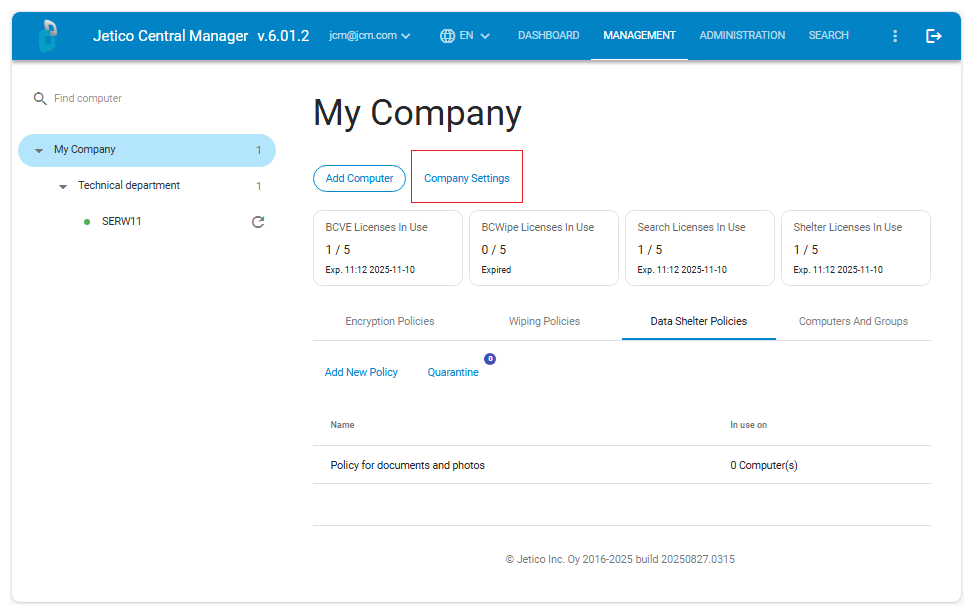
Open the quarantine list
- In the left pane of the JCM Console, select the company.
- Open the Data Protection Policies tab.
- Click Quarantine.
JCM displays the list of programs currently quarantined on managed client computers.
Review a quarantined program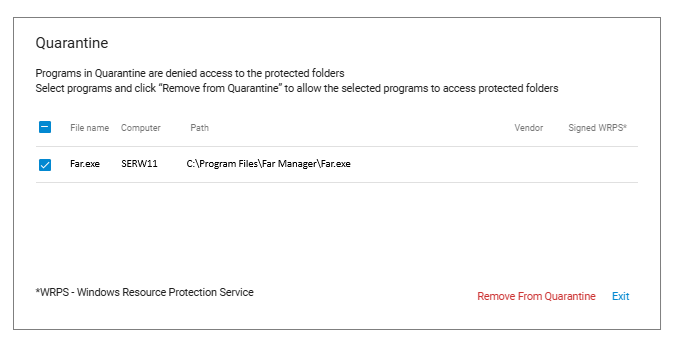
Before removing a program from quarantine, verify whether the executable change is expected.
For example, the change may be legitimate if:
- the application was updated by the software vendor;
- the program remains securely signed;
- the change is part of a known maintenance or deployment process.
Treat the change as suspicious if:
- the executable changed unexpectedly;
- the source of the change is unknown;
- the program is not signed or no longer has a valid signature;
- the program attempted to access protected data without a clear reason.
Remove a program from quarantine
Remove a program from quarantine only after you confirm that it is trusted.
- Select the quarantined program in the quarantine list.
- Click Remove from Quarantine.
After the program is removed from quarantine, it can access protected folders again if the active protection rules allow it.