Manually Creating a Policy
This article explains how to create a BestCrypt Data Shelter Global Policy in Jetico Central Manager.
Use this method when you already know which folders, users, and applications the policy should include.
Before you begin, review Protection Policies for the policy structure and Protection Rules for access-control settings.
How to Create a New Global Policy in Jetico Central Manager
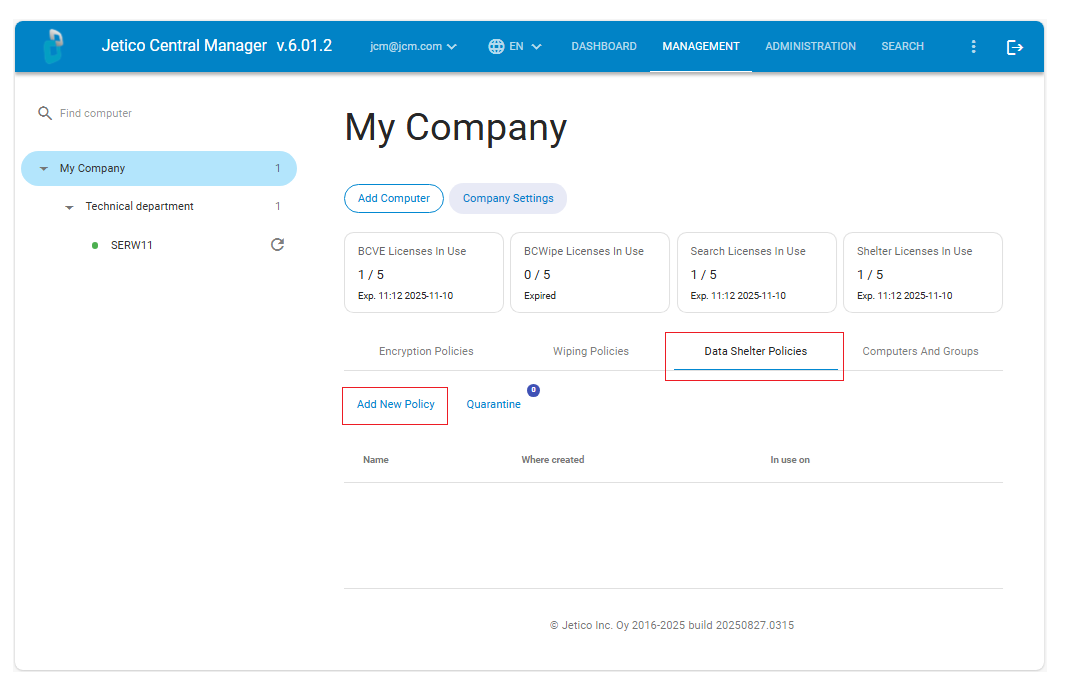
- In the left pane of the JCM Console, select the company.
- Open the Data Shelter Policies tab.
- Click Add New Policy.
- In the New Global Policy window, enter a clear policy name.
Example: MS Excel Document Protection Policy
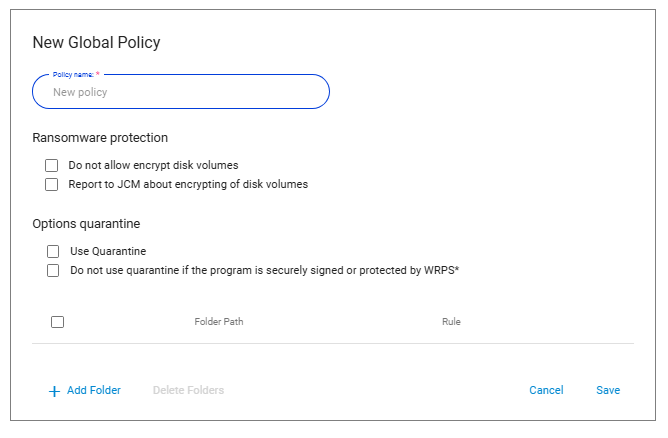
Configure policy-wide settings
Policy-wide settings apply to the whole policy. For a conceptual explanation of ransomware protection and quarantine behavior, see Protection Policies.
Ransomware protection
Use these options to control how Data Shelter responds to suspicious encryption activity, such as attempts to encrypt disk volumes or files in protected folders. This behavior is commonly associated with crypto-malware and ransomware.
- 🗹 Do not allow encrypt disk volumes
Blocks detected disk volume encryption attempts by suspending or canceling the operation, depending on the selected client-side response. - 🗹 Report to JCM about encrypting of disk volumes
Reports detected disk volume encryption attempts to JCM so administrators can review potentially malicious encryption activity.
Quarantine options
Use these options to control how Data Shelter responds when a changed executable file tries to access protected data.
- 🗹 Use Quarantine
Temporarily blocks changed executable files from accessing protected folders. - 🗹 Do not use quarantine if the program is securely signed or protected by WRPS
Excludes trusted signed applications and Windows Resource Protection Service components from quarantine handling.
Add folders
- Click Add Folder.
- Enter the folder path.
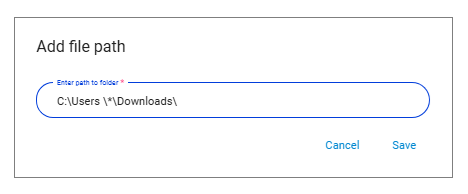
You can add multiple folders to the same policy.
For paths that differ between computers, use wildcards.
Example:
C:\Users\*\Downloads\
This can match paths such as: C:\Users\Alice\Downloads\ and C:\Users\Bob\Downloads\
Create or assign a rule
After adding a folder, define who and what can access it.
- In the folder table, open the command in the Rule column.
- Create a new rule or select an existing one.
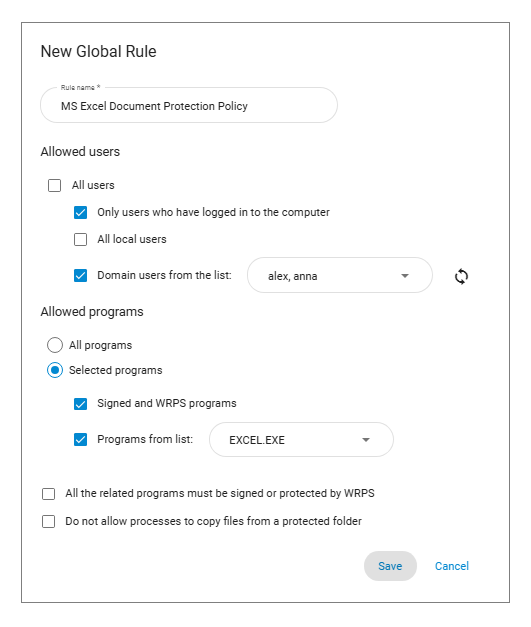
A rule defines:
- allowed users;
- allowed applications;
- additional access restrictions.
For details, see Protection Rules.
Save the policy
After you configure the settings, folders, and rules, save the policy.
The policy is now available in JCM and can be assigned to computers or groups.
For deployment instructions, see Applying Protection Policies