Applying Protection Policies
This article explains where BestCrypt Data Shelter protection policies can be applied in Jetico Central Manager.
Use this article after you have created a Global Policy manually or imported a policy from a client computer.
A Global Policy can be applied to:
- computer groups;
- individual client computers.
Use group-level assignment when multiple computers should use the same protection configuration. Use individual assignment for testing, exceptions, or computers that require separate Data Shelter settings.
For general information about creating and managing computer groups in JCM, see Groups of Computers.
Applying a policy to a computer group
Apply a policy to a computer group when all computers in the group should receive the same Data Shelter configuration.
To apply a policy to a group:
- In the left pane of the JCM Console, select the computer group.
- Click on the hyperlink in the BestCrypt Data Shelter policy area.
- Select the Global Policy that should be assigned to the group.
After the policy is assigned, JCM applies it to the computers in the group.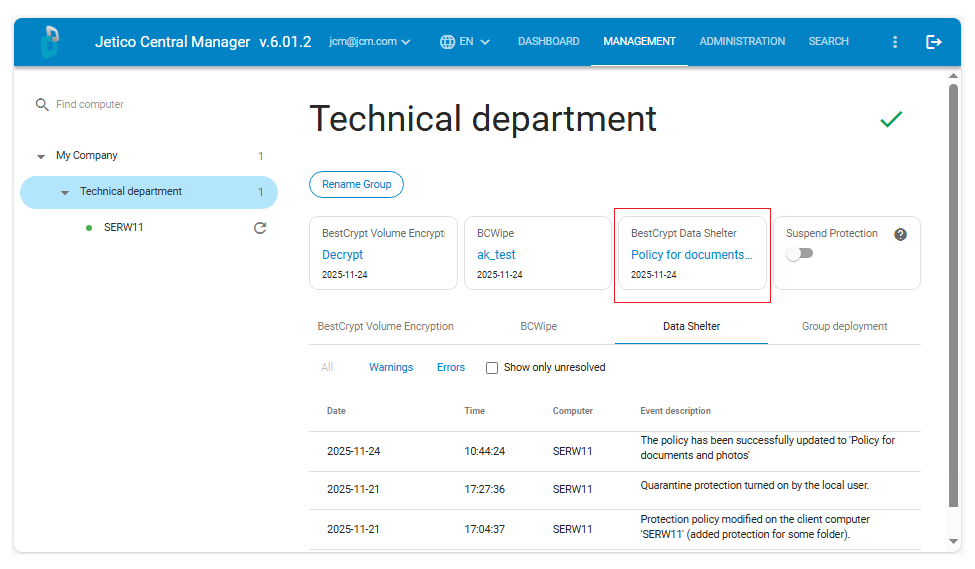
Applying a policy to an individual computer
Apply a policy to an individual computer when that computer should use a specific Data Shelter configuration instead of the group-level policy.
To apply a policy to one computer:
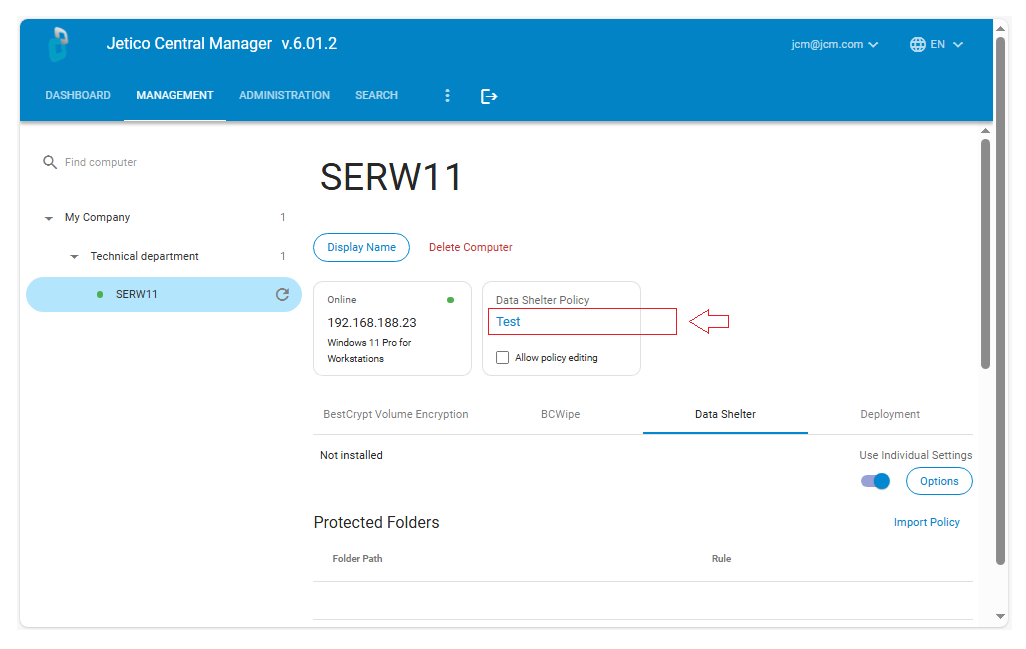
- In the left pane of the JCM Console, select the client computer.
- Switch to the Data Shelter tab on the computer page.
- Click on the hyperlink with the current Data Shelter policy name.
- Select the Global Policy that should be assigned to this computer.
- Make sure Allow policy editing is not selected if the computer should remain centrally managed.
If Allow policy editing is enabled, the local administrator can change Data Shelter settings on the client computer. Use this option only when local policy changes are required, for example when preparing a policy for import into JCM.
Related computer-level controls
The individual computer page includes additional Data Shelter controls, such as local policy editing, importing local rules or policies, individual settings, and activity logs.
For details, see Managing Data Shelter on an Individual Computer.
Logging
Data Shelter events are reported according to the logging options configured in Company Settings.
Depending on the selected options, JCM can receive events such as:
- policy changes;
- access denied events;
- access granted events.
For logging configuration, see Company Settings - BestCrypt Data Shelter