Search filters by file attributes
This article describes the search filters based on file attributes available in Search. These filters define which files appear in the search results by examining properties such as name, size, dates, type, or content structure. You can apply one or more filters to narrow your results and locate the files that are relevant to your task.
Filters that help you search based on the information contained within files are described separately in Search Filters by Type of Information.
1. File Path (File Name)
This filter is used to search for files by specifying the full or partial file name or file path. The wildcard character * is supported.
Matching is not case sensitive, so “file.txt” and “File.txt” are treated as the same.
Examples:
|
Expression |
Result |
|
C:\Data\* |
All files in “Data,” including subfolders |
|
C:\Data\*.txt |
All .txt files in “Data” and subfolders |
|
C:\Data\*.* |
All files with any extension in “Data” |
|
C:\Data* |
All files in any folder in the root directory whose name starts with “Data” |
|
C:\*\filename.doc |
filename.doc located in any subfolder of the C: drive |
|
*\filename.doc |
filename.doc located anywhere on the computer |
2. Size
The Size filter allows you to search for files based on their size. You can specify the size using kilobytes (KB), megabytes (MB), or gigabytes (GB), for example: “20 MB.”
To define a size range, create two filters and combine them using the AND operator. For example, to locate files between 5 MB and 10 MB, configure the following filters:
• Size: More than 5 MB
• Size: Less than 10 MB

When these filters are applied together, only files within the selected size range will appear in the search results.
3. Date Range
The Date Range filter allows you to search for files based on time-related attributes. You can choose one of the following file dates:
• Date created
• Date last accessed
• Date last modified
After selecting the appropriate date attribute, you can specify whether the filter should return files before or after the selected date.
To search within a specific period (for example, files modified in the last 30 days), create two filters and combine them using the AND operator:
• Date last modified: After 01/01/2024
• Date last modified: Before 01/31/2024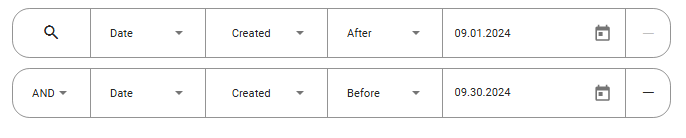
Only files that fall within that time window will appear in the search results.
4. File Type
The File Type filter allows you to search for files based on their extension. For example:
• PDF documents: .pdf
• Microsoft Word documents: .doc, .docx
• Text files: .txt
JCM includes a predefined list of supported file extensions. When you add the File Type filter, several common file types are pre-selected automatically to help you start searching right away.
To refine the selection, open the dropdown list in the filter control and:
• Clear checkboxes to exclude file types you do not want to include
• Select additional checkboxes to include file types that are not pre-selected
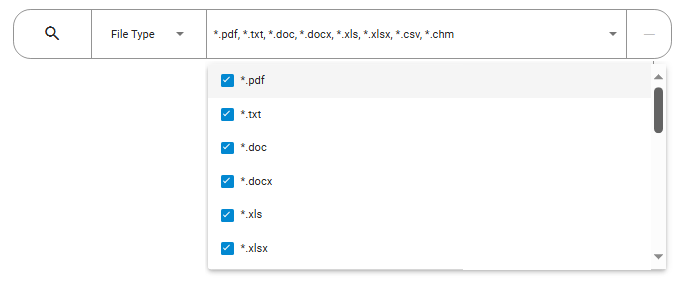
This allows you to precisely define which file types should be included in the search.
If the required extension is not present in the list, you can add it manually in the configuration file (application.properties), under jcm.ai.file.type.list
🗲HINT: Text Recognition in Images (OCR)
To enable recognition of text in image-based documents:
1. Install Tesseract on the computer where JCM Server is running.
2. Add the following path to the system PATH variable:
C:\Program Files\Tesseract-OCR\
3. Restart the JCM Server and all connected client computers.
When OCR is enabled, JCM can extract and analyze text from supported image or image-based formats, allowing them to be included in content-based searches.
5. File Hash
The File Hash filter allows you to find files whose contents exactly match a selected reference file. This match is based on the file’s cryptographic hash value, so JCM can identify identical files even if they have been renamed or stored in different folders.
To configure this filter, click Upload and select the reference file whose hash should be used for comparison.

This filter is useful for:
• Detecting unauthorized copies of sensitive files
• Finding duplicates stored across different locations
• Verifying file integrity across endpoints
Only files that exactly match the reference file’s hash are included in the search results.
6. Sample file
The Sample File filter allows you to search for files with similar content to a selected reference file. This filter does not require an exact match. Instead, JCM analyzes the textual content of files and compares it with the reference sample.
To configure the filter, click Upload and select a reference file.
The reference file size must not exceed 100 MB.

JCM supports similarity analysis for the following file types:
.doc, .docx, .txt, .xls, .xlsx, .ppt, .pptx, .pdf, .odt, .ods, .odp, .epub, .fb2, .rtf, .html, .htm, .csv, .tsv, .xml, .zip, .chm
JCM analyzes the first 500 words in each file and assigns a relevance score based on the number of matching words:
Match Level Relevance Score
30+% match Low
60+% match Medium
90+% match High
You can sort the search results by relevance to prioritize files that are most similar to the reference.
This filter is useful for identifying:
• Modified versions of a document
• Copies where only small changes have been made
• Files with shared topics, phrases, or content structure