AI Categories - smart classification
AI Categories in JCM Search provide an advanced, content-aware method for locating information when predefined patterns or keywords are not sufficient. Instead of relying on explicit rules, AI Categories use machine-learning models trained on sample documents to identify files containing the same type of information.
This approach is particularly useful when the structure of the data varies, or when the information cannot be reliably expressed using regular expressions or keyword combinations.
How AI Categories Work
Each AI Category is trained using a set of sample files that represent a specific data type.
Based on these examples, the AI model learns to recognize similar files across managed computers.
When an AI Category is selected in a search:
- JCM analyzes file content rather than exact matches
- files are classified based on similarity to the trained examples
- results include files that match the information type, even if wording or structure differs
AI Categories extend traditional search logic and are especially valuable for abstract or poorly structured data.
Built-in AI Categories
JCM includes several pre-trained AI Categories designed to detect common categories of regulated or sensitive information. These categories are available immediately after installation and require no additional configuration.
- HIPAA: Protected Health Information (PHI)
- HIPAA: Health Insurance and Claims Documentation
- GLBA: Protected Financial Information (PFI)
- SOX: Corporate Financial Reporting and Compliance Documentation
These built-in categories enable AI-powered data discovery aligned with widely recognized regulatory frameworks.
Reviewing Training Samples (Optional)
For transparency and verification, you can review the sample files used to train each built-in AI Category.
These sample files are stored in the Jetico Central Manager installation directory.
Default location:
C:\Program Files (x86)\Jetico\Jetico Central Manager\media.src\search
Creating Custom AI Categories
If the built-in AI Categories do not cover your specific needs, you can create custom categories tailored to your organization.
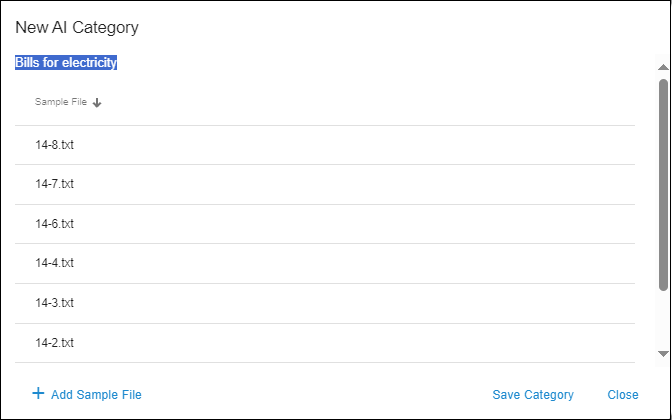
To create a custom AI Category:
- Open Customization in the main JCM Search interface.
- Switch to the AI Categories tab.
- Click Create New.
- Assign a name to the category.
- Add sample files that represent the data you want to detect.
- Save the category.
The AI model will use the provided samples to identify similar files during search operations.
🗲HINT: The quality and diversity of sample files directly affect classification accuracy. For best results, it is recommended to include 30–50 representative documents when creating custom AI Categories.
Using AI Categories in Search
Once created, an AI Category can be selected from the Filters menu when configuring a search.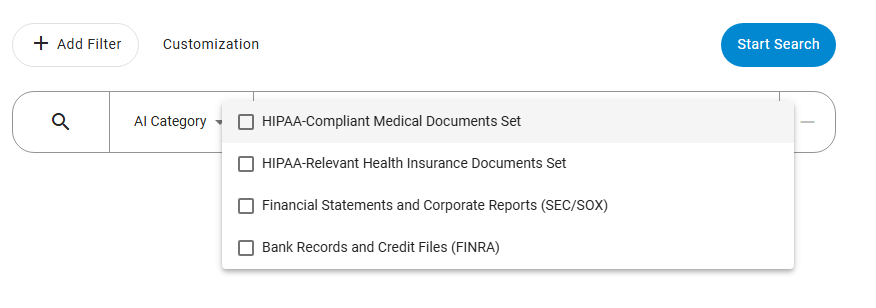
AI Categories can be combined with other filters, such as file attributes or additional conditions, to further refine results.
Further reading
Now that you have explored all search filter types in the What Information Can Be Found chapter, including Templates, Presets, and AI Categories, you can proceed to the next section. The Search Results chapter explains how search results are presented and what actions can be performed with them, such as reviewing, exporting, backing up, or securely erasing data.