If the encryption key for the volume is stored on SafeNet eToken device,the password for the volume is also the password for the eToken. If you decide to Change password, you should realize that new password for the eToken must be entered in other applications that use the eToken device as well. To change a passphrase for a SafeNet eToken device, use the SafeNet eToken management software the computer must have installed (i.e eToken PKI Client or eToken RTE).
If the encryption key for the volume is stored on Yubikey device, then it is not possible to change password directly. To change the password, the user have to restore the encryption key (move it back to the volume), delete all the keys on the Yubikey device, and move the encryption key again, typing the new password.
Since eToken and Yubikey devices support one only password, administrator cannot add new passwords for the encrypted volume using Add password command. Instead, administrator can copy encryption key stored on the eToken/Yubikey to eToken/Yubikey of the other user. The other user's eToken/Yubikey has another password, so all the users will open the same encrypted volume by entering different passwords for their different devices. To copy the encryption key, use the ->Encryption key->Backup keys to other removable device command.
BestCrypt Volume Encryption provides the user with additional commands to manage keys on the removable devices (SafeNet eToken, Yubikey and USB disk devices). The functionality can be useful and even necessary to avoid losing encrypted data and enhance security for sensitive data.
It is strongly recommended to create a backup copy of encryption keys stored on removable device. Since these devices tend to be small and often fragile, they are succeptible to being lost or damaged. If you lose the device containing the encryption key for a volume, the volume will become completely inaccessible.
To copy encryption keys from one device to another, run the ->Encryption key->Backup keys to other removable device command. The program will ask the user to insert a Source Token where from the keys should be saved and Destination Token where the keys should be saved to (as the following picture illustrates):
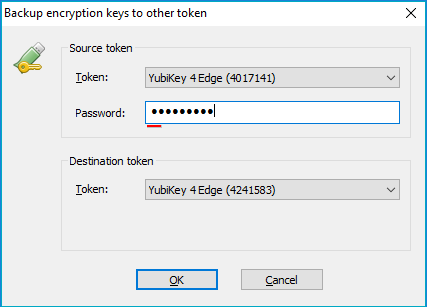
After entering passphrases for the Source and Destination devices, click . The program will copy encryption keys to the Destination device and report when the operation has been successfully completed.
Please store the Destination device containing copies of the encryption keys in a safe place so it can be accessed and used should the original device with encryption keys is lost or damaged.
BestCrypt Volume Encryption allows copying keys only to the same type of removable storage. For example, if original keys are stored on SafeNet eToken, then it will be possible to copy the keys only to the same type of device, i.e. to another SafeNet eToken.
If you are not going to use some removable device as a storage for encryption keys anymore, you can delete the keys from the device. To delete the keys run the ->Encryption key->Delete all keys from external storage command.
Please be careful when you delete encryption keys from removable device! If you still have some volume encrypted with the key stored on the device, the volume will become completely inaccessible.