BestCrypt Volume Encryption allows the user to permanently encrypt an entire volume. For these encrypted volumes, the software transparently decrypts the data from the volume when applications read it and transparently encrypts data when it is written to the volume.
To encrypt a volume (D:\ for instance), select the volume in the BestCrypt Volume Encryption main window. Then run the ->Encrypt Volume command. The following window will appear:
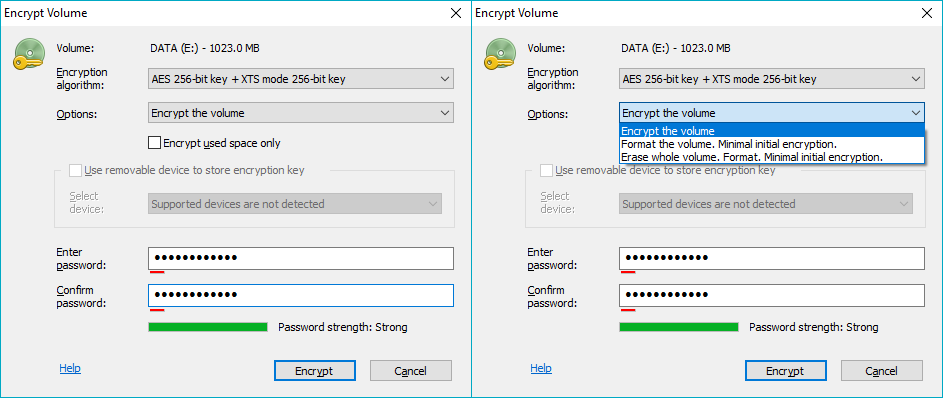
Select an encryption algorithm to encrypt the volume with in Encryption algorithm combo box. Read more information about available algorithms in the Encryption algorithms article.
Initial encrypting of disk volume runs with a speed about 30 - 60 sec/GByte. So it will require about 30 hours to encrypt a 2 TByte volume. Sometimes users do not need to encrypt the whole disk volume For example, if a new, OEM hard disk is installed. In this case, the user may choose the option Format the volume. Minimal initial encryption. In this case, the program would format the volume and encrypt only the freshly initialized filesystem data on the volume. This particular process would take mere seconds and all the data written to the volume from then on would be encrypted.
Potential drawback of Format the volume. Minimal initial encryption option is that part of the volume with encrypted data will appear as filled by random data, other part of the volume (unused disk space) will likely store zeros. So, without much effort someone could define how much data are stored on the volume.
If the security consideration above is important, the user may instead opt for the Erase whole volume. Format. Minimal initial encryption. option. In this instance, the program will write random data to the volume before formatting it. As a result, no one would be able to define whether the volume is full of encrypted data or storing nothing. Note that Format... options are not available for boot/system volumes, because they store system files and cannot be formatted.
The software’s Encrypt used space only option allows the user to encrypt only the part of a disk volume occupied by files. However, please be aware of the following security issue: only sectors where existing files are stored will be encrypted. Sectors that store earlier deleted files will not be encrypted. So if the earlier deleted files could contain some sensitive information, one of the following is recommended: a) use option Encrypt all sectors instead, or b) after encrypting only used space on the disk volume, run secure wiping procedure to wipe free space on the encrypted volume (for example, with Jetico BCWipe software).
When you enter password for encrypted volumes, take notice of the Password strength progress indicator. The software runs password strength estimation procedure based on Zxcvbn algorithm. It is recommended to choose password that would be of Good or Great strength. Read more about the algorithm in the Security characteristics article.
Although BestCrypt utilizes the best in data encryption technology it cannot protect you if you choose a weak password for your container easily guessed by a savvy malicious person.
When choosing new passwords it is strongly advised to follow these simple rules for greatly enchanced security:
For example, weak passwords include your personal information which includes your licence plate number, mother's maiden name, pet name, social security number, student id, past or current telephone number and birthday dates. This information can be easily obtained after a simple investigation. Other examples of weak passwords are dictionary words like "secret" or common sequenses of symbols in one keyboard row like "qqq", "qwerty", or "12345" including all of the above but in alternative language locale. These passwords can all be easily cracked by simple dictionary search.
Examples of strong passwords follow above guidelines but utilize several tricks to make memorization easier. For example choose some phrase you can easily remember and use first letters of each word for password mixing lower and upper case and replacing words like "for" and "to" with "4" and "2". We cannot give you an example of such a password here because once printed in this guide this password, although strong, will become a dictionary word and anyone attempting to crack your BestCrypt container will surely try this password. This again stresses the importance of being creative when choosing a strong password for your container.
NOTE: BestCrypt Volume Encryption supports English keyboard layout only. If your keyboard layout is configured to other language, it will be automatically changed to English as soon as you start typing your password.
BestCrypt Volume Encryption can store encryption key for the volume you are going to encrypt on removable devices. The picture above illustrates the case when no suitable devices are detected on the computer. In this case enter passphrase you are going to use for the volume to the Enter password edit box.
If some supported removable device (SafeNet eToken, Yubikey, USB disk) is inserted to USB port, the following window appears:
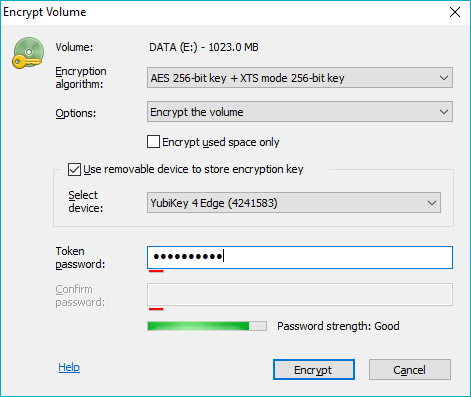
To use the device, check the Use removable device to store encryption key checkbox. Then enter passphrase for the hardware device to the Token password edit box. For devices that have a pre-set password (e.g. SafeNet eToken) BestCrypt will ask to enter the pre-set Token password once (to authenticate into the device). For devices that don't have a pre-set password, a new password should be configured by filling out the Token password and Confirm password fields. The password chosen at this step will be used for 2 factor authentication with this device.
If the user is going to encrypt System/Boot volume, the software will need to test whether the removable device can be accessed at boot time, or not. The software will suggest the user should reboot the computer with the device inserted and then run the Encrypt volume command again. If the boot test passed successfully, it will be allowed to store the key for the Boot/System volume on the device. This boot test is not performed for USB flash disks.
As soon as the encryption process starts, the removable device must be plugged in for authentication every time you start the system. Note that it should be inserted not at the time when the BCVE password prompt appears, but earlier, prior to the PC running POST.
When you finish entering passphrases click to encrypt the volume or to cancel volume encrypting.
To encrypt volume the software needs so-called seed data to generate random encryption key. To get random numbers for the seed, the program will display dialog window and ask the user to move mouse or press keys on keyboard randomly. The picture below illustrates the dialog window.
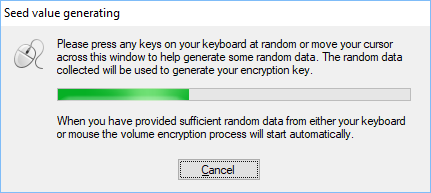
When enough random data is collected, encryption process will start automatically.
Encrypting is a time consuming operation. You can suspend the process by clicking .
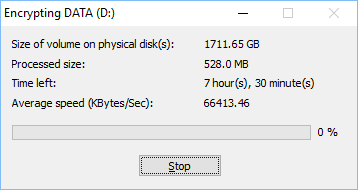
If you do not complete volume encrypting procedure, BestCrypt Volume Encryption will remind you about not completely encrypted volume. You can continue encrypting process at any time you prefer, for example, after turning off computer and running it again after several days. To continue the process just select the volume and run the ->Encrypt Volume command again.